Devices and app styles: change the whole look
The same conversation can look like a green-bubble family chat, a blue-and-grey text thread or a dark gaming server. Matat separates what is said from how it looks, so you can write once and try different looks without retyping a word.
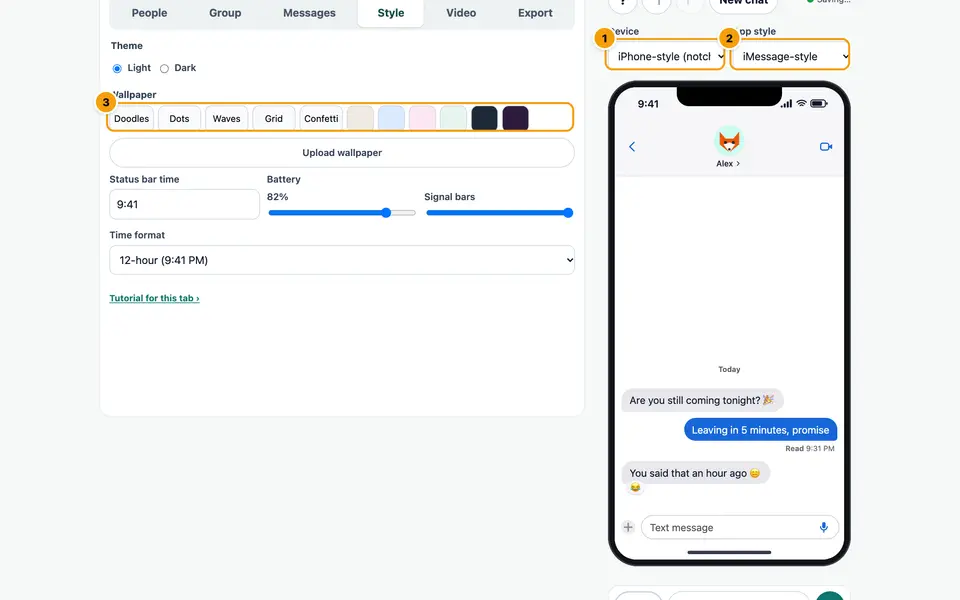
Two menus above the editor do the heavy lifting: App style and Device. The Style tab adds the finer details that make a screenshot believable, such as the clock in the status bar and the battery level.
Step by step
Choose an app style
Open App style and pick one of seven looks: WhatsApp-style, iMessage-style, Messenger-style, Instagram DM-style, Telegram-style, Discord-style or Android Messages (SMS)-style. Bubble shapes, colors, where the times and receipts sit, the header layout and the input bar all change. Your messages and people stay exactly as they were.
Choose a device frame
The Device menu sets the phone around the chat: a dynamic-island phone, a notch phone, a classic phone with a home button, a punch-hole phone, a flat phone with a small camera dot and three navigation buttons, or Frameless screenshot with no frame at all. The status bar and bottom navigation change with the frame.
Set light or dark and a wallpaper
In the Style tab pick a Theme, Light or Dark. Under Wallpaper choose Doodles, Dots, Waves, Grid, Confetti or a plain color, or press Upload wallpaper for your own image. Some styles, such as iMessage-style, keep a plain background like the apps they imitate.
Fine-tune the status bar
Type the Status bar time, for example 9:41 or 2:07. Drag Battery and Signal bars to taste: a 3% battery at 2 AM tells a story on its own. Time format switches all message times between 12-hour and 24-hour.
Compare and pick
Flip through a few combinations before you export. A short, punchy chat often reads best in a bubble style; a long group argument can be easier to follow in the Discord-style list. Matat remembers your last style and device for your next visit.
Matching style and frame
Some combinations simply look right. The iMessage-style layout pairs naturally with the dynamic-island or notch frames, and the SMS-style layout with the two punch-hole style frames, the punch-hole one and the one with three navigation buttons. WhatsApp-style and Telegram-style work on any phone. Frameless screenshot is ideal when you want to drop the chat into a slide, a comic panel or a video edit with your own background.
What the styles are and are not
Each style imitates the general look of a kind of messaging app. Every icon, color and wallpaper is drawn by Matat, and Matat is not affiliated with any of the companies behind those apps. The styles exist so that stories, memes and mockups read naturally, not so that anyone can pass a picture off as a real screenshot. Each style also has its own page, linked from the tools overview, with tips for that look.
Dark mode tips
Dark mode is great for late-night scenes and for Discord-style servers. Check that uploaded wallpapers are dark enough that bubbles stay readable; a busy photo behind white text is hard work for the reader. Light mode with the Doodles or Dots wallpaper is the safest default for social posts, because it survives compression and small thumbnails. If you plan to post the image on a platform with a white background, a Frameless screenshot in light mode often looks cleaner.
Questions
Will switching the style delete my messages?
No. App style and device only change the look. Messages, people, times and reactions are kept.
Can I change the bubble colors?
Bubble colors are part of each style. Use Light or Dark, a different wallpaper or another style for a different feel.
Which frame should I use for a video?
Any of them works. The video is 9:16 with the phone centered; a framed phone looks good on a gradient, while Frameless screenshot fills more of the picture.