Matat tutorials
New here? Start with lesson 1: it takes about a minute and ends with a finished chat image. Each lesson after that covers one part of the editor with numbered steps and screenshots of the real tool, so you can follow along in another tab. The lessons build on each other, but every one also stands on its own.
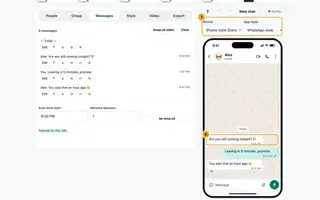 1. Make your first mock chat in 60 secondsA one-minute quick start: pick a style and a phone, type a few messages for both sides and download the chat as a PNG image.
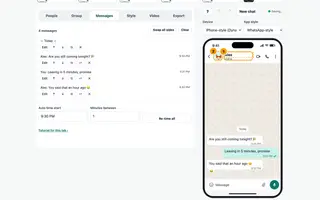 2. Names, avatars and the status lineGive your mock chat a cast: rename the contact, pick an illustrated avatar or upload a picture, set colors and write a status line like online or typing.
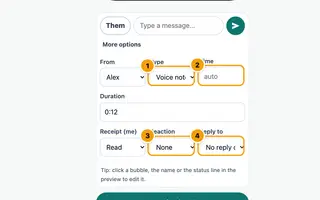 3. Message types: images, voice notes, replies and moreGo beyond plain text: add photos, voice notes, reply quotes, reactions, deleted messages, date separators and system notices to your mock chat.
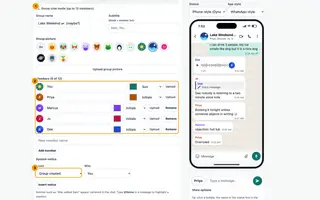 4. Make a group chat with up to 12 membersTurn on group mode, add up to twelve members with names, colors and pictures, insert notices like "Alex added Sam" and highlight @mentions.
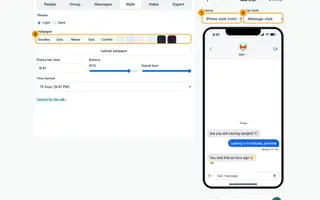 5. Devices and app styles: change the whole lookSwitch between seven app styles and six phone frames, then fine-tune dark mode, wallpaper, clock, battery, signal and time format in the Style tab.
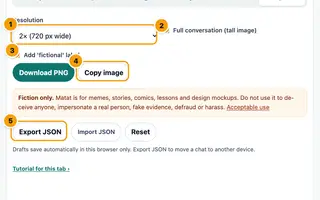 6. Export a PNG, a long screenshot or copy the imageDownload your mock chat as a PNG at 2× or 3×, export the whole conversation as one tall image, copy it to the clipboard or add the fictional label.
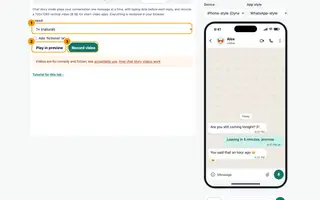 7. Record a chat story video in your browserPlay a conversation one message at a time with typing dots and record a 720×1280 vertical WebM video. Set the speed and add the optional label.
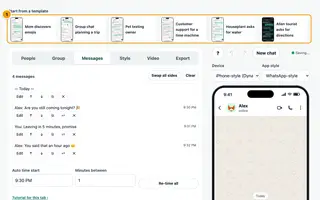 8. Templates, autosave and JSON import/exportStart from a ready-made template, rely on autosave in your browser, and move or back up chats with Export JSON and Import JSON. Undo, New chat and Reset.
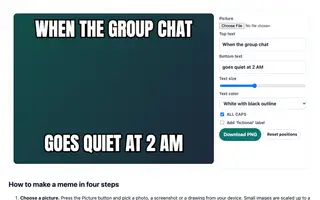 9. Meme maker, fancy text and other fun toolsUse Matat's free extras: the meme maker, fancy text generator, emoji translator and conversation starters, and send ideas straight to the chat editor.
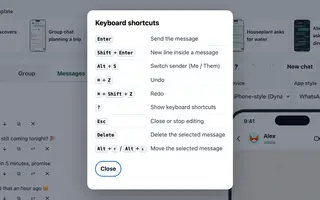 10. Keyboard shortcuts, tips and FAQWork faster in Matat with keyboard shortcuts and inline editing, use the editor on a phone, and get answers to the most common questions.
Quick start in your language
Lesson 1 is available in every language the editor speaks, with screenshots of the translated interface. The other lessons are in English for now.
- Español: Crea tu primer chat falso en 60 segundos
- Português (Brasil): Crie sua primeira conversa fake em 60 segundos
- Français: Créez votre premier faux chat en 60 secondes
- Deutsch: Dein erster Fake-Chat in 60 Sekunden
- Italiano: Crea la tua prima chat finta in 60 secondi
- Bahasa Indonesia: Buat chat palsu pertama Anda dalam 60 detik
- 日本語: 60 秒で最初のフェイクチャットを作る
- 한국어: 60초 만에 첫 가짜 채팅 만들기
- 简体中文: 60 秒做出你的第一张模拟聊天截图
- हिन्दी: 60 सेकंड में अपनी पहली नकली चैट बनाएँ
- العربية: اصنع أول محادثة وهمية في 60 ثانية
- Türkçe: İlk sahte sohbetinizi 60 saniyede oluşturun
- Tiếng Việt: Tạo đoạn chat giả đầu tiên trong 60 giây
- Русский: Первый фейковый чат за 60 секунд
Looking for writing ideas rather than button-by-button help? Read the guides or open a template.