Export a PNG, a long screenshot or copy the image
Once the chat looks right, you need it as a picture you can post, print or drop into a design. Matat draws the PNG in your browser, so it is fast, works offline once the page is loaded and never sends your chat anywhere.
The big Download PNG button next to the phone is the quickest route. The Export tab adds the options: resolution, the full-length screenshot, copy to clipboard and the fictional label.
Step by step
Open the Export tab
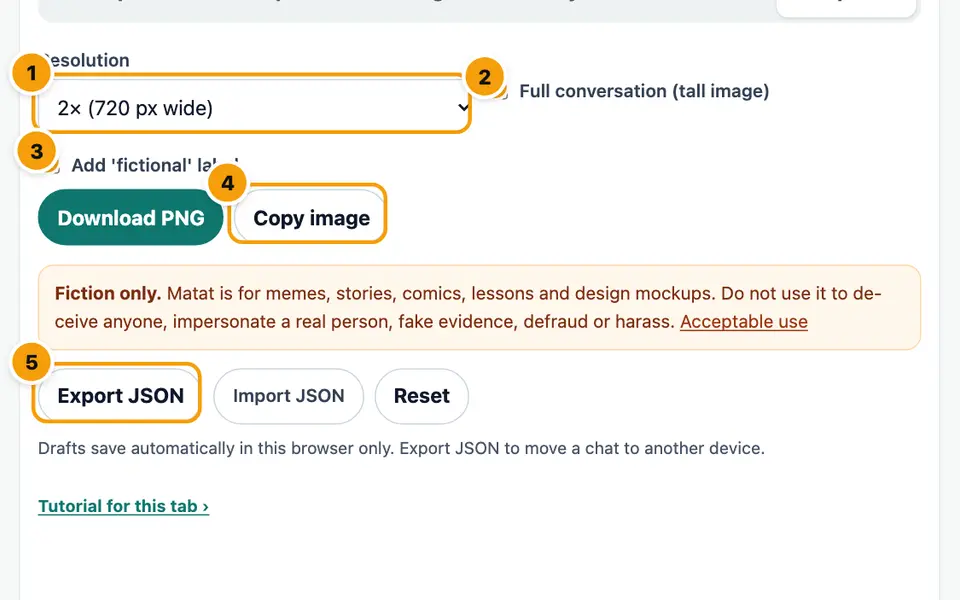
Click Export in the editor tabs. At the top you see Resolution and Full conversation (tall image), then Add 'fictional' label, then the Download PNG and Copy image buttons. Below them are the JSON buttons covered in the saving lesson.
Pick a resolution
2× (720 px wide) is sharp on phones and light enough for chat apps and social posts. 3× (1080 px wide) is the better choice for print, slides and video editing, where you may zoom in. The file is larger but every letter stays crisp.
Export the whole conversation
By default the PNG shows exactly what fits on the phone screen, like a normal screenshot. Tick Full conversation (tall image) to get every message in one long image, the way a scrolling screenshot looks. The header and input bar stay at the top and bottom. Use it for long stories; for comics, a sequence of normal-height screens often reads better. A tall image at 3× can get very large, so check the file size message before you upload it to a platform with limits.
Download or copy
Press Download PNG to save the file; a short message tells you its size. Press Copy image to put the picture on the clipboard and paste it straight into a document, a design tool or a chat. If your browser does not allow copying images, Matat says so and you can download instead.
Add the fictional label when it matters
Tick Add 'fictional' label and a small "Made with matatapp.com · fictional" mark is drawn above the input bar. It is off by default. Turn it on whenever the picture might be shared out of context or mistaken for a real conversation.
What is inside the file
The PNG has no visible watermark unless you choose the label. It does carry a short text note in its metadata (a PNG tEXt chunk) saying it was made with a chat mockup tool. The note is invisible in the picture and is there so the origin of the image can be checked. Some platforms strip metadata on upload, which is one more reason to use the visible label when honesty matters.
Exporting on a phone
On small screens the Download PNG button sits in the sticky bar at the bottom, so it is always one tap away from either the Edit or the Preview view. Your phone saves the file to its downloads or offers to share it, depending on the browser. Copy image works in most modern mobile browsers too.
Use exports responsibly
A sharp PNG in a familiar style can look like a real screenshot. Never use one as evidence, to impersonate someone or to spread false claims about real people. Memes, stories, lessons and design mockups are what Matat is for, and our terms forbid deceptive use. When in doubt, add the label.
Questions
Why does my PNG not show all messages?
The normal export shows one phone screen. Tick Full conversation (tall image) to include every message.
Can I export without the phone frame?
Yes. Choose Frameless screenshot in the Device menu before exporting.
Is there a limit on exports?
No. Export as many images as you like; everything runs on your device.