Make a group chat with up to 12 members
Group chats are where the best comedy happens: the family thread that wakes up at 6 AM, the trip that never gets planned, the office cake that goes wrong. A group needs more than two voices, and readers need to tell those voices apart at a glance.
Matat's Group tab handles all of that. In this lesson you switch on group mode, build the member list, add the classic notices and use mentions. Everything you learned about message types in the previous lesson works inside groups too.
Step by step
Switch on group mode
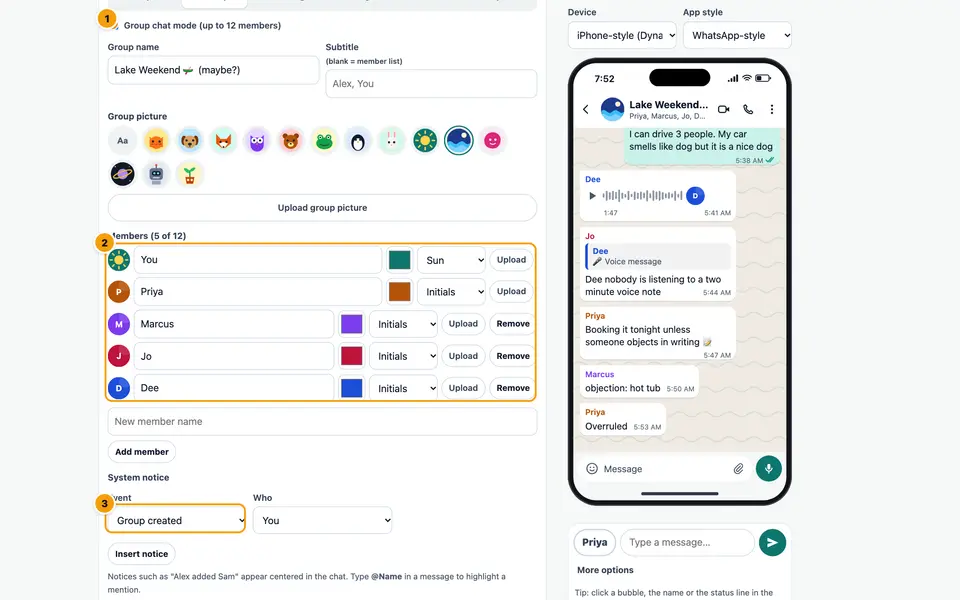
Open the Group tab and tick Group chat mode (up to 12 members). The header changes to show a group name and, under it, a subtitle. Type the Group name, for example "Lake Weekend 🛶 (maybe?)". Leave Subtitle blank and Matat lists the member names automatically, as many apps do.
Add the members
Type a name in New member name and press Add member. Each member gets a color, which tints their name above their bubbles, and an avatar you can change. You count as one of the twelve. Remove anyone with the button next to their name; their messages are handed to the first contact in the list, so settle the cast before you write.
Pick a group picture
Choose an illustrated picture under Group picture or press Upload group picture to use your own. As with avatars, uploads stay on your device. Use pictures you are allowed to use.
Write as different members
The quick compose bar still flips between Me and Them with Alt+S; to pick an exact member, open More options and choose them in the From menu, which lists everyone in the group. Type @Name inside a message, such as "@Theo are you alive", and the mention is highlighted.
Insert system notices
Under System notice choose an Event: Group created, Member added, Member removed, Member left, Joined by link, Group renamed, Picture changed or Privacy notice. Pick Who and, for added or removed, Whom, then press Insert notice. The notice appears centered in the chat, for example "Alex added Sam".
Or start from a group template
The Group templates buttons at the bottom of the tab load a finished group conversation that you can rename and rewrite. Matat asks before replacing your chat, and Ctrl+Z brings the old one back.
Write a group that feels real
Give every member one clear habit. One person writes essays, one replies only with emoji, one asks a question that was answered an hour ago, one never speaks until the last message. Readers learn these patterns fast, and the payoff is better when the quiet member finally says something.
Let people talk over each other. Two quick messages from different members before anyone answers the first question is what real groups look like. Reply quotes help readers follow who is answering what.
Notices as story beats
System notices are often the punchline. "Grandpa Walt changed the group name" twice in a row, someone added to the surprise-party chat who should not be there, or "Jo left" right after a bad joke. Place them between messages exactly where the event would happen. Our templates include family and office groups built around these beats.
Groups in different app styles
Every app style draws groups its own way. WhatsApp-style and Telegram-style show colored names above bubbles, iMessage-style and Messenger-style add small avatars next to incoming messages, and Discord-style turns the header into a # channel with names above each run of messages. Switching styles keeps all members and messages; see devices and app styles.
Questions
How many people can a group have?
Up to twelve members in total, including you.
Can I turn a group back into a one-to-one chat?
Yes. Untick group mode. Only you and the first contact stay, and messages from the other members are given to that contact, so export JSON first if you may want the group back.
Can I edit a system notice after inserting it?
Yes. It appears in the Messages list like any other message, where you can edit its text, move it or delete it.