Message types: images, voice notes, replies and more
Real conversations are not just lines of text. People send photos, record voice notes, reply to an old message, react with an emoji or delete something they regret. Matat supports all of these, and a mix of them is what makes a picture feel like a lived-in chat instead of a script.
The quick compose bar under the phone is perfect for text. For everything else you use the full message form in the Messages tab. This lesson shows each type, when to use it and how to change it later.
Step by step
Open the full message form
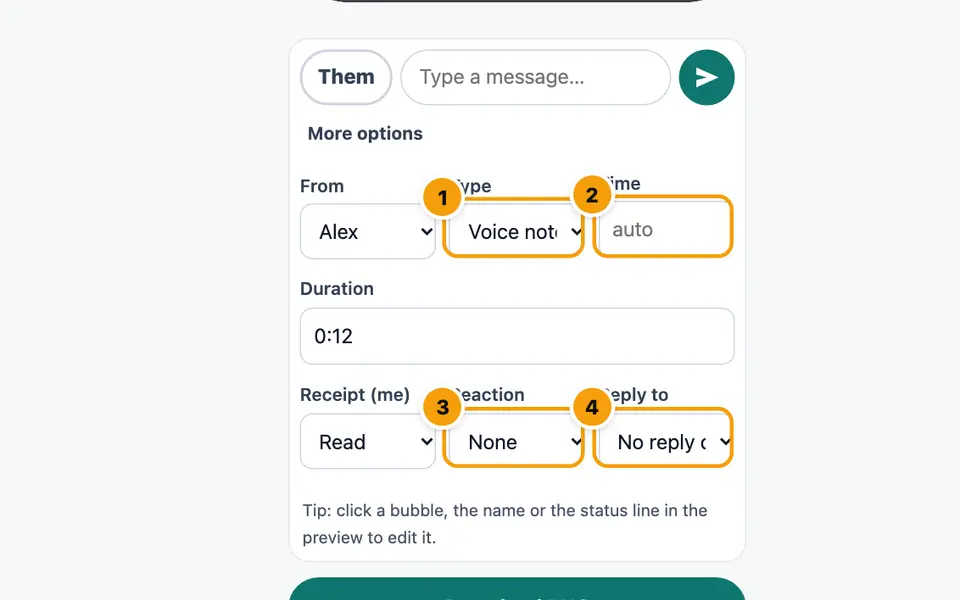
Press More options next to the compose bar to reach the full form in the Messages tab. There you choose From (who sends it), Type and an optional Time. Leave the time on auto and Matat numbers messages for you; type a time such as 9:41 PM to override one message.
Choose a type
The Type menu offers Text, Image, Voice note, Deleted message, Date separator and System notice. The form changes to match: an image gets a file picker and an optional caption, a voice note gets a Duration field such as 0:12, and a deleted message needs no text at all because it shows "This message was deleted" or "You deleted this message".
Add a reply quote
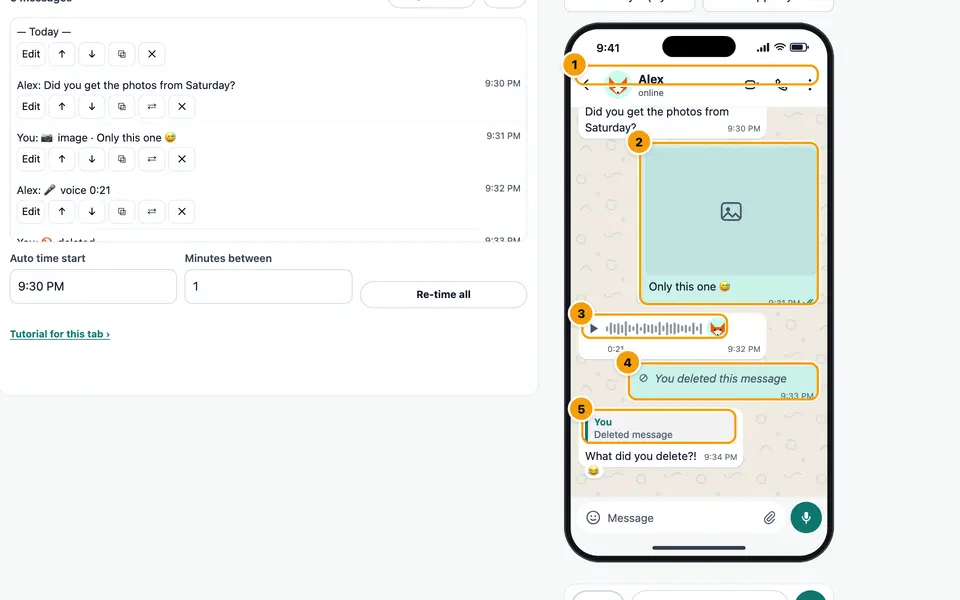
To answer an earlier message, pick it in the Reply to menu before you press Add message. The new bubble shows a small quote of the original on top, just like a swipe-to-reply. This is the best tool for arguments in group chats, where people answer something said ten messages ago.
React and set receipts
The Reaction menu puts one emoji on the corner of a bubble: 😂, ❤️, 👍, 😮, 😢, 🙏, 💀 or 🔥. For your own messages, Receipt (me) chooses Read, Delivered or Sent, which shows as ticks, a "Read" line or a tiny seen avatar depending on the app style. You can also add a reaction later from the bubble toolbar in the preview.
Break the chat into scenes
A Date separator is a centered label such as "Yesterday" or "Monday" that splits the conversation in time. Type the label as the message text. A System notice is a centered grey line for events, for example a privacy note or "Sam left". Both are ignored by reply quotes and receipts, so they never break the flow.
Edit or reorder afterwards
Every message appears in the list under the form with buttons to edit, move up or down, duplicate, swap sides or delete. In the preview you can click a bubble to edit its text and use the toolbar for side, time, reaction, order and delete. Re-time all renumbers every time from Auto time start with the gap you set in Minutes between.
Images and voice notes
Image messages use a picture from your device; it is scaled down in the browser and stays local. Add a caption for a line of text under the photo. A good comedy trick is a blurry or unrelated picture with a confident caption. Voice notes draw a waveform with a play button and the duration you type, and they are great for the friend who never writes: three voice notes in a row tell the whole story.
Pacing with separators and deletions
A date separator is a cut in a film. Put one between "I will definitely start the diet tomorrow" and the next morning's excuse and the reader fills the gap. Deleted messages create mystery: a single "This message was deleted" followed by "ignore that" makes people wonder what was written. Use them sparingly so each one lands.
For group-specific notices such as "Alex added Sam" or a renamed group, the Group tab has a dedicated notice builder; the group chats lesson shows how it works.
A note on realism
The more message types you use, the more convincing a mock chat looks. That is great for stories and mockups, but it also means a picture can be mistaken for a real screenshot. Keep it clearly fictional, and see the exporting lesson for the optional fictional label.
Questions
Can a message have both an image and text?
Yes. Choose Image, pick the picture and type a caption in the Message box.
Can I add more than one reaction to a bubble?
Each message shows one reaction. Pick the one that best fits the punchline.
How do I change the time of a single message?
Select the bubble in the preview and press the time button in its toolbar, or edit the message in the list and type a new time.