Templates, autosave and JSON import/export
A blank chat can be the hardest part. Templates give you a finished conversation to rewrite, autosave makes sure you never lose a draft, and JSON files let you keep a library of chats or move one to another computer.
None of this needs an account. Your work lives in your browser and in files you choose to save, which keeps it private but also means you are in charge of backups. This lesson shows how each piece works.
Step by step
Load a template
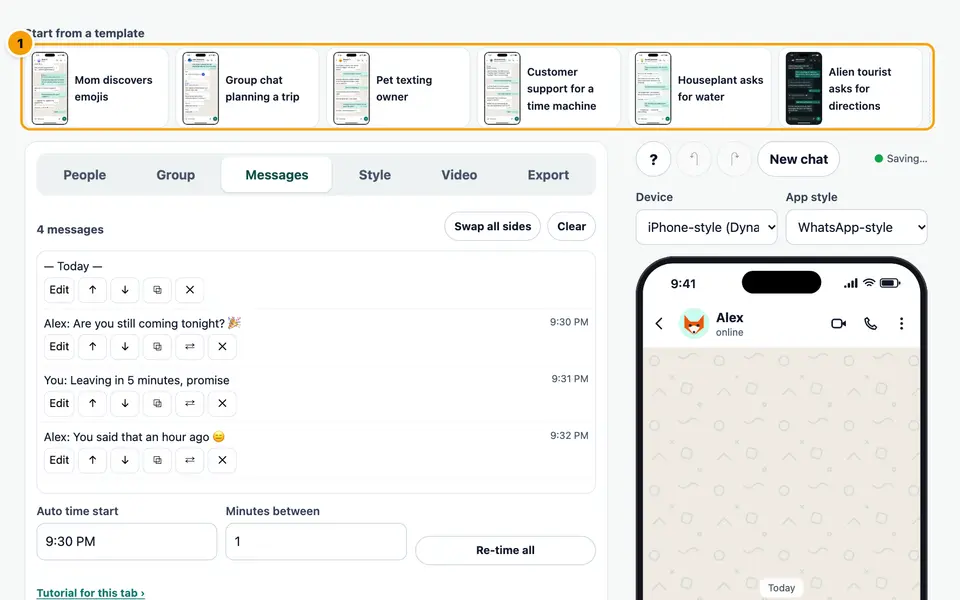
The Start from a template strip above the editor offers sample conversations such as "Mom discovers emojis", "Pet texting owner" or "Customer support for a time machine". Click one and it replaces the current chat; Matat tells you that Ctrl+Z undoes it. All templates opens the full templates library, where each template has a page with remix ideas.
Watch the Saved indicator
Every change is stored automatically in this browser. The indicator above the preview shows Saving… and then Saved. If it shows Not saved, the draft is usually too big for local storage, often because of large uploaded pictures; export JSON to keep it.
Export the chat as JSON
In the Export tab press Export JSON. Matat downloads a small file with everything: people, avatars, messages, times, style and device. Uploaded pictures are embedded, so the file is complete on its own. Name it something you will recognize later.
Import it anywhere
On another computer, phone or browser, open Matat, go to the Export tab and press Import JSON. Pick the file and the chat appears exactly as you left it. Importing replaces the current draft, so export that first if you want to keep it.
Start over safely
New chat above the preview clears everything for an empty conversation, after asking you. Reset in the Export tab goes back to the sample chat. Both can be undone with Undo or Ctrl+Z (⌘+Z on a Mac); Redo steps forward again.
How private is autosave?
The draft is kept in your browser's local storage for this site. It is never sent to a server, so we cannot see it and cannot recover it. Clearing site data, using a private window or switching browsers starts you with a fresh chat. If a conversation matters to you, keep a JSON copy.
Build your own template library
JSON files make great personal templates. Save a chat with your favorite cast, avatars and style, then import it whenever you start a new episode and rewrite only the messages. Teachers can share one file with a class so everyone starts from the same scene. Only import files you trust or made yourself; a JSON file contains just chat data, but it can carry pictures.
Remixing templates
Templates are starting points, not finished posts. Rename the characters, change the setting, swap avatars, switch to group mode and add your own punchline. The group chats lesson and the group templates in the Group tab are a quick way to get a multi-person scene going.
Moving between devices
A common workflow is to write on a laptop, where typing is fast, and record the video or export on a phone. Export JSON on the laptop, send the file to yourself by any route you already trust, then press Import JSON on the phone. Avatars, wallpapers and image messages come along inside the file, so the chat looks identical. The same file works in any language version of the editor.
Questions
Can I keep several chats at once?
The browser keeps one current draft. Save other chats as JSON files and import the one you want to work on.
Does undo survive a page reload?
The draft does, but the undo history is for the current session. Export JSON before big changes you might want to reverse later.
Are the templates free to use?
Yes. Use and remix them for your own memes, stories and lessons.