Names, avatars and the status line
A conversation only works when the reader knows who is talking. In a real messaging app that job is done by three small things at the top of the screen: the contact name, the round picture and the line of grey text underneath. Matat lets you change all three, plus your own name and the color each person uses in group layouts.
This lesson covers the People tab and the shortcuts in the preview itself. If you have not made a chat yet, start with the 60-second quick start and come back with a few messages on the phone.
Step by step
Rename the chat from the header
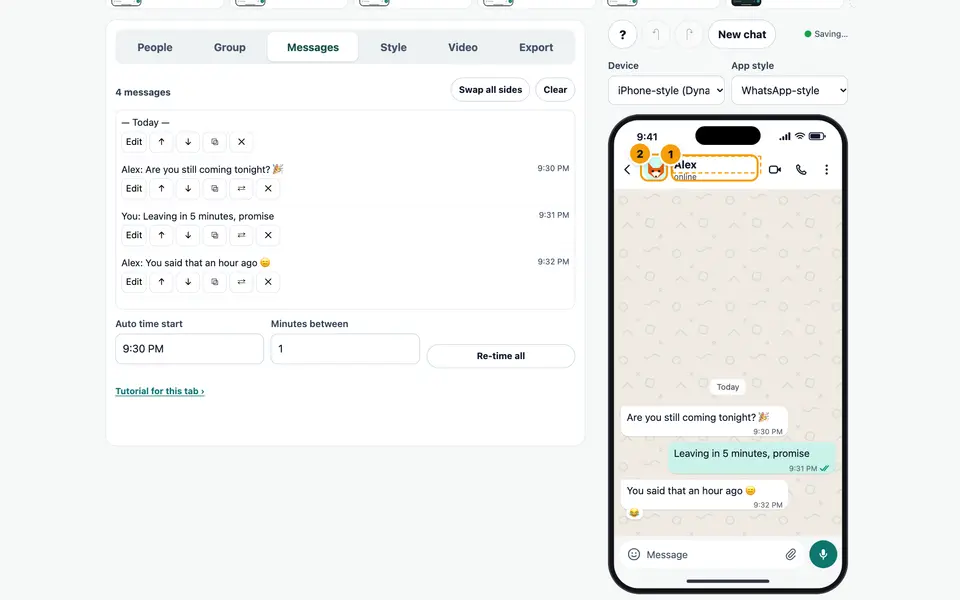
Click the contact name at the top of the phone and type a new one. Press Enter or click elsewhere to keep it, or Esc to stop editing. The same value appears in the Chat name field of the People tab, so you can use whichever is closer. Short names look most natural; a single emoji after the name, such as "Mom 💐", is a nice touch.
Write a status line
Double-click the grey line under the name to edit it. Typical values are "online", "typing…", "last seen today at 1:01 PM" or "recording audio…", and the Status line field in the People tab offers those as suggestions. You can also write anything you like, for example "last seen in direct sunlight" for a houseplant. Leave it empty to hide the line.
Pick an avatar
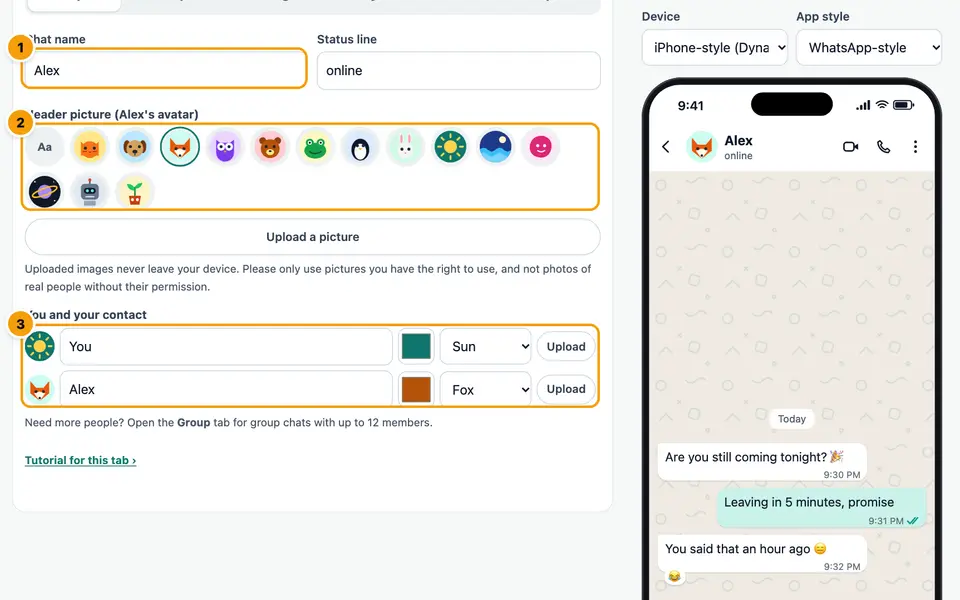
Click the round picture in the header and Matat jumps to the People tab. The grid offers fourteen illustrated avatars, such as a cat, an owl, a robot or a planet, all drawn by us. Pick one and the header updates at once. Choose Initials in a person's avatar menu if you prefer a colored circle with the first letter of the name.
Upload your own picture
Press Upload a picture to use an image from your device. It is read and resized in your browser and never uploaded to a server. Please use pictures you made yourself or have the right to use, and do not use photos of real people without their permission.
Set your own name and the colors
Under You and your contact each person has a name field, an avatar menu and a color. Your own name is what appears in system notices and in some layouts; the color shows up in group chats and Discord-style lists, where every sender's name is tinted. Pick colors that are easy to tell apart.
Small details that sell the scene
The status line is one of the cheapest ways to add a joke. "typing…" over a chat where the other person has gone silent builds suspense, and "last seen yesterday at 11:02 PM" says more than any message. Match the avatar to the character: an owl for a wise grandparent, a robot for a support bot, a frog for a chaotic friend.
Names do the same work. "Mom" reads very differently from "Linda (Mom)" or "MOM DO NOT ANSWER". If you are writing a series, keep names and avatars consistent from one image to the next so readers recognize the cast.
More than two people
The People tab is built for one-to-one chats. For a family thread, a class project or an office disaster, switch on group mode in the Group tab; the group chats lesson explains members, group pictures and notices.
Respect real people
Using a real person's name and face makes a mock chat look like a statement from that person. Do not do it without their consent, and never to put words in someone's mouth or to embarrass them. Fictional characters, pets and objects are always safe ground. Our acceptable use rules spell this out.
Questions
Where do uploaded avatars go?
Nowhere. They stay in your browser as part of the draft. If you export JSON, the picture is stored inside that file so it travels with the chat.
Can I hide the status line?
Yes. Clear the Status line field or delete the text after double-clicking it in the preview.
Why does my name not show in a two-person chat?
Most one-to-one layouts only show the other person in the header. Your name appears in group chats, in system notices and in the Discord-style list.