Make your first mock chat in 60 seconds
Matat turns a few lines of dialogue into a picture that looks like a phone screenshot. You do not need an account, nothing is uploaded, and the whole thing works in your browser. This first lesson walks you through the shortest possible path: choose how the phone should look, type the conversation, and save the image.
Keep the generator open in another tab while you read. Every step below matches a numbered callout in the screenshots, so you can follow along click by click. When you are done you will have a finished mock chat, and the next lessons show you everything else the editor can do.
Step by step
Pick a style and a device
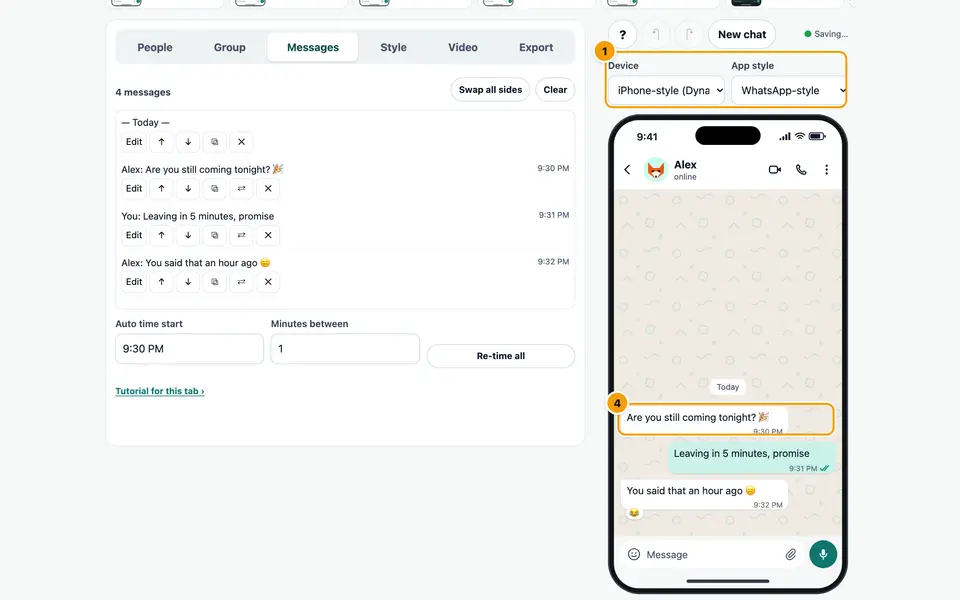
Above the phone preview there are two menus. App style changes the colors, bubbles and header so the chat resembles a familiar messenger look, for example the WhatsApp-style or iMessage-style layout. Device changes the phone frame: a modern phone with a dynamic island, a notch, a classic home button or a punch-hole camera. Your choice is remembered the next time you visit.
Type the first message
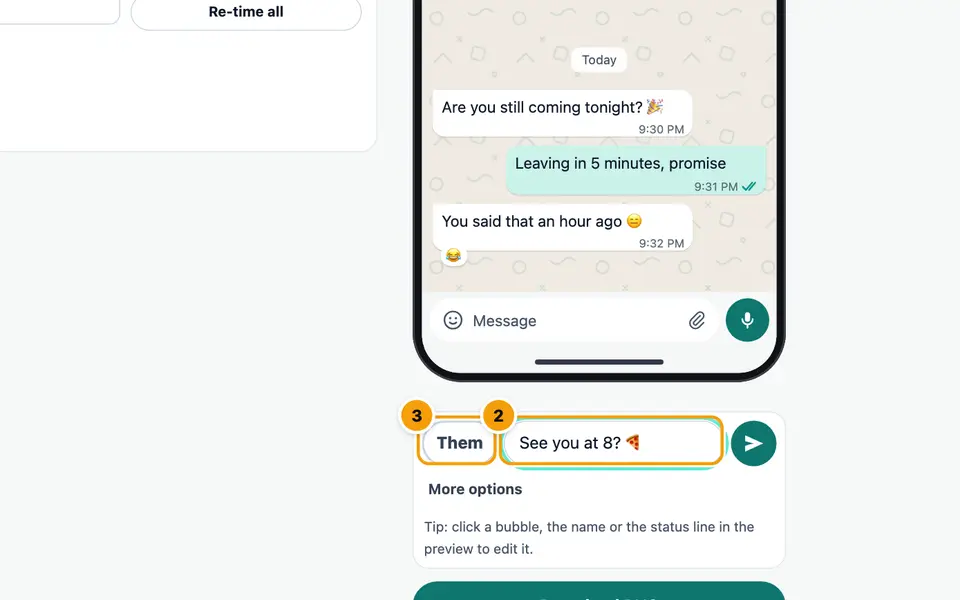
Under the phone you will find the compose bar. It works like a real chat app: click the text box, type a line and press Enter. The message appears in the preview immediately. Use Shift+Enter when you want a line break inside one bubble.
Switch between Me and Them
The round button on the left of the compose bar decides who is talking. Me puts the bubble on the right in your own color; Them puts it on the left. Tap the button, or press Alt+S while you type, to flip sides. Write a few lines back and forth until the joke or the story lands.
Fix anything right on the phone
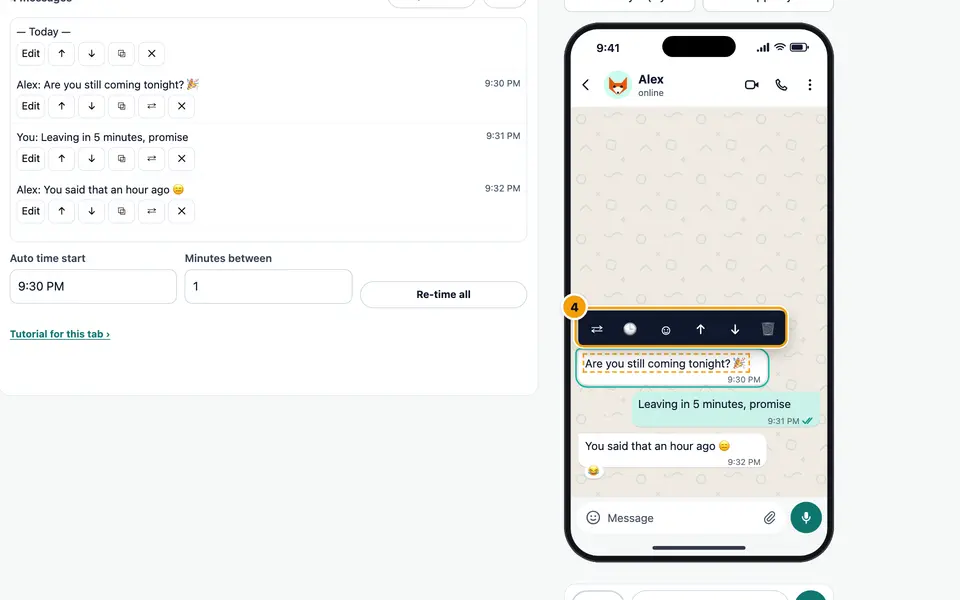
Made a typo? Click the bubble in the preview and edit the words in place. A small toolbar appears next to it with buttons to change the side, the time, add a reaction, move the message up or down, or delete it. Click the contact name at the top to rename the chat. If you change your mind, press Ctrl+Z (or ⌘+Z on a Mac) to undo.
Download the PNG
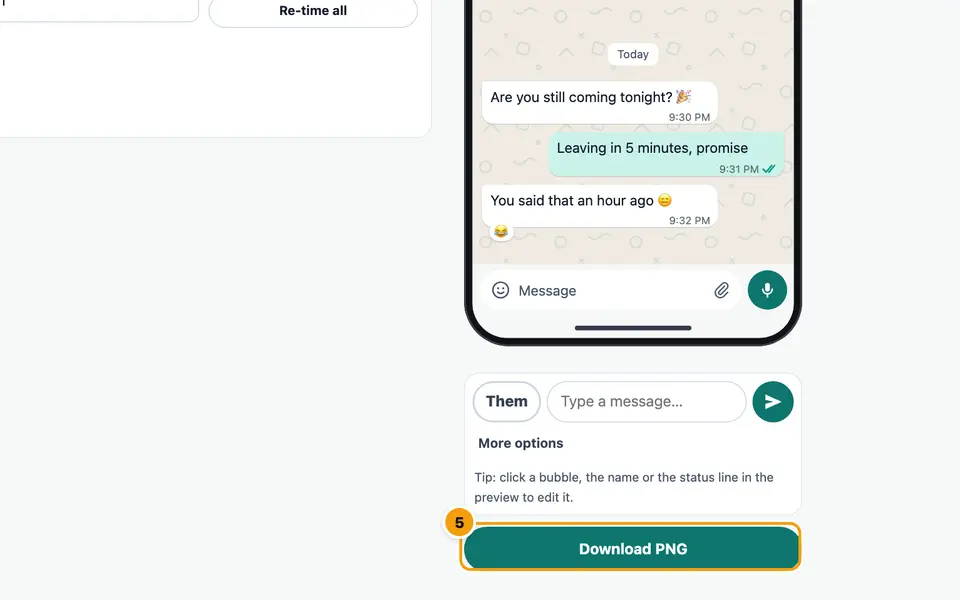
When the preview looks right, press Download PNG next to the phone. The image is drawn in your browser at twice the screen resolution and saved to your downloads folder. On a phone the same button sits in the bar at the bottom of the screen, so it is always one tap away.
On a phone
On small screens the editor is split into two views. The bar at the bottom has Preview and Edit buttons. Preview shows the phone and the compose bar, which is all you need for a quick chat. Edit shows the full tabs for people, groups, style, video and export. Switching never loses your work, and the Download PNG button stays in the same place.
Your chat is saved automatically
The little Saved indicator above the preview tells you that the current chat is stored in this browser. Close the tab, come back tomorrow, and it is still there. Nothing leaves your device, which also means a draft does not follow you to another computer; the saving lesson shows how to move it with a JSON file.
Want a clean slate? Press New chat above the preview. Matat asks before it clears anything, and even then one undo brings the old chat back.
Use it responsibly
A mock chat is a picture of a conversation that never happened. That is perfect for memes, comics, short stories, school projects and app mockups. It is not okay for faking evidence, impersonating real people or misleading anyone, and our acceptable use rules forbid it. If an image could be mistaken for a real screenshot, tick the optional fictional label in the Export tab.
Questions
Do I need to sign up?
No. Matat has no accounts. Open the page and start typing.
Is the picture watermarked?
No visible watermark is added unless you switch on the optional fictional label. The PNG file carries a small text note in its metadata that says it was made with a chat mockup tool.
Can I start from an example instead of a blank chat?
Yes. The template strip above the editor loads one of our sample conversations in one click, and you can then edit every line.