Keyboard shortcuts, tips and FAQ
By now you know every part of the editor. This last lesson is about speed and polish: the keyboard shortcuts that let you write a whole chat without touching the mouse, the inline edits in the preview, the mobile layout and the questions people ask most often.
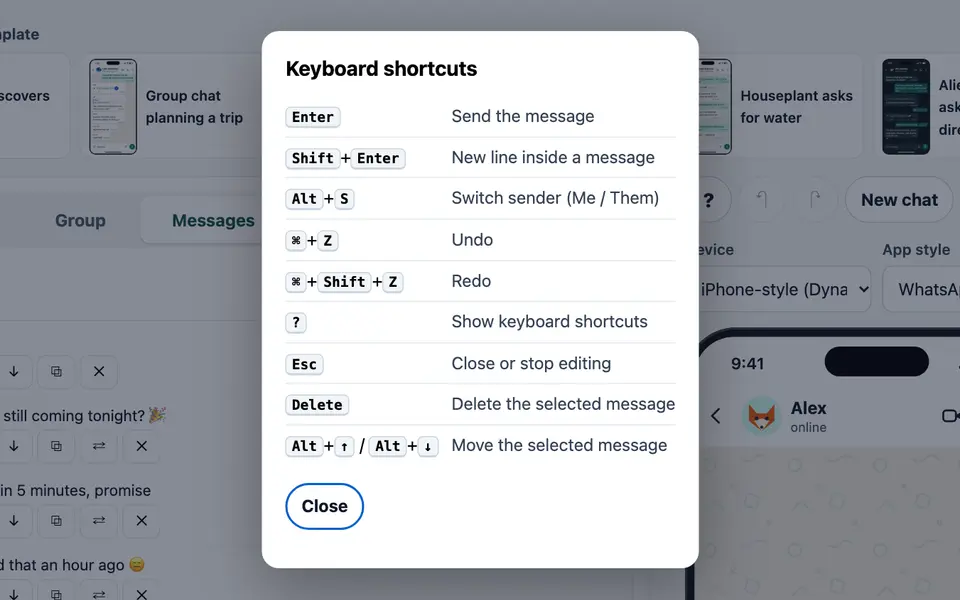
Press ? at any time in the editor (when you are not typing in a field) to see the shortcuts, or open the ? help button above the preview for the tour, the shortcut list and links back to these tutorials.
Step by step
Learn the core shortcuts
Enter sends the message, Shift+Enter adds a new line inside it and Alt+S switches the sender. Ctrl+Z undoes and Ctrl+Shift+Z or Ctrl+Y redoes; on a Mac use ⌘ instead of Ctrl. ? opens the shortcuts panel and Esc closes it or stops editing.
Edit bubbles from the keyboard
Click a bubble to select it. Delete removes the selected bubble and Alt+↑ or Alt+↓ moves it up or down. If you delete the wrong one, Ctrl+Z brings it back.
Use the inline tools
Click a bubble to edit its text in place; its toolbar switches the side, changes the time, adds a reaction, moves it up or down, or deletes it. Click the header name to rename the chat, click the avatar to open the People tab, and double-click the status line to edit it. The editor tabs also respond to the arrow keys.
Work on a phone
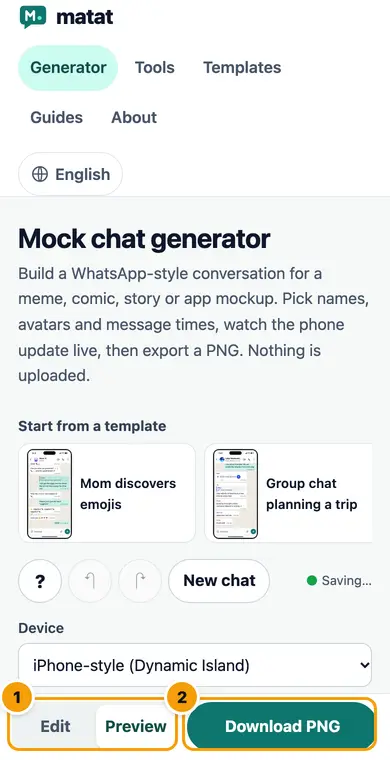
On small screens the bar at the bottom switches between Preview, with the phone and compose bar, and Edit, with all the tabs. Download PNG stays in that bar in both views. Write in Preview, then visit Edit for avatars, groups, style and video.
Polish before you export
Check the status bar time and battery, read the chat once as a stranger would, and make sure the last message is the punchline. Then choose a resolution and export, as shown in exporting.
Ten quick tips
Keep messages short and let people double-text. Use one reply quote per exchange at most. Put a reaction on the punchline, not everywhere. Use a date separator to jump in time instead of explaining. Make the quiet character say the last word. Pick avatars that match personalities. Set the clock to a time that adds to the joke. Use Re-time all after reordering so times stay in sequence. Try two or three app styles before deciding. Save a JSON copy of anything you want to come back to.
Troubleshooting
If the Saved indicator turns to Not saved, your draft is too large for local storage; remove or shrink uploaded pictures, or export JSON. If Copy image fails, your browser does not allow image copying; use Download PNG. If Record video is unavailable, use Play in preview with a screen recorder, as explained in chat story videos. If something looks wrong after an import, Ctrl+Z returns the previous chat.
Where to go next
Browse the templates for ready-made scenes, read the guides for writing and pacing ideas, and keep the acceptable use rules in mind: Matat is for memes, stories, comics, lessons and mockups, never for deceiving anyone.
Questions
Is anything sent to a server while I edit?
No. Once the page has loaded, editing, PNG export and video recording all run in your browser. Opening other pages, such as templates, loads them from the site as usual.
Can I use Matat for commercial mockups?
Yes, for app designs, slides and marketing mockups that are clearly illustrations. Do not imply that real people or companies said something they did not.
Why do some shortcuts not work while I type?
Shortcuts like ? and Delete act on the editor, so they are ignored while the cursor is in a text field. Press Esc first.
Is Matat affiliated with any messaging app?
No. It is an independent tool that draws its own general styles; all trademarks belong to their owners.